

OAuth 2.0
Requesto has built-in OAuth 2.0 support with automatic token management.
Supported Grant Types
- Authorization Code - standard server-side flow
- Authorization Code with PKCE - PKCE challenge/verifier generated automatically
- Implicit - browser-based (deprecated in OAuth 2.1)
- Client Credentials - server-to-server, no user involved
- Resource Owner Password - direct username/password exchange
Creating a Configuration
- Open a request's Auth tab and select OAuth 2.0
- Click New (or Manage → New Config) to open the configuration wizard
- Pick a provider template (Microsoft Entra ID, Google, GitHub, Auth0, or Okta) or configure manually
- Fill in the fields for your chosen grant type
- Click Save
Common fields:
| Field | Description |
|---|---|
| Client ID | From your OAuth provider |
| Client Secret | From your OAuth provider (stored server-side only) |
| Authorization URL | Provider's authorize endpoint |
| Token URL | Provider's token endpoint |
| Redirect URI | Auto-detected from your browser URL - typically http://localhost:5173/oauth/callback in dev or http://localhost:4747/oauth/callback in Docker |
| Scopes | Space-separated list of permissions |
Any OAuth provider works - the templates just pre-fill the URLs for the most common ones.
Authenticating
- Click Authenticate on your config
- A browser window (or popup, depending on your choice) opens to the provider's login page
- After granting access, the provider redirects back to Requesto
- The token is stored server-side, ready to use
Using a Token in Requests
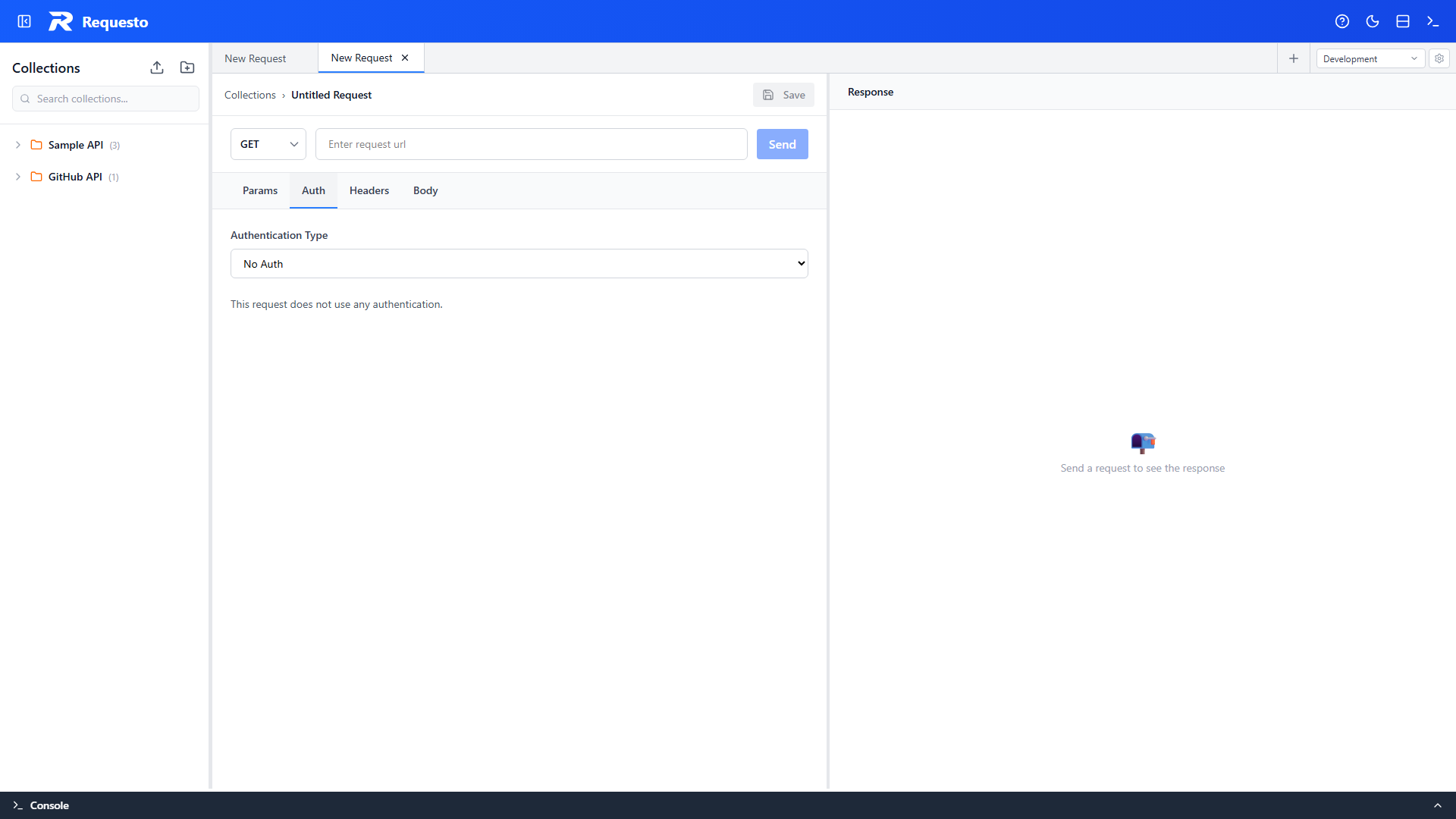
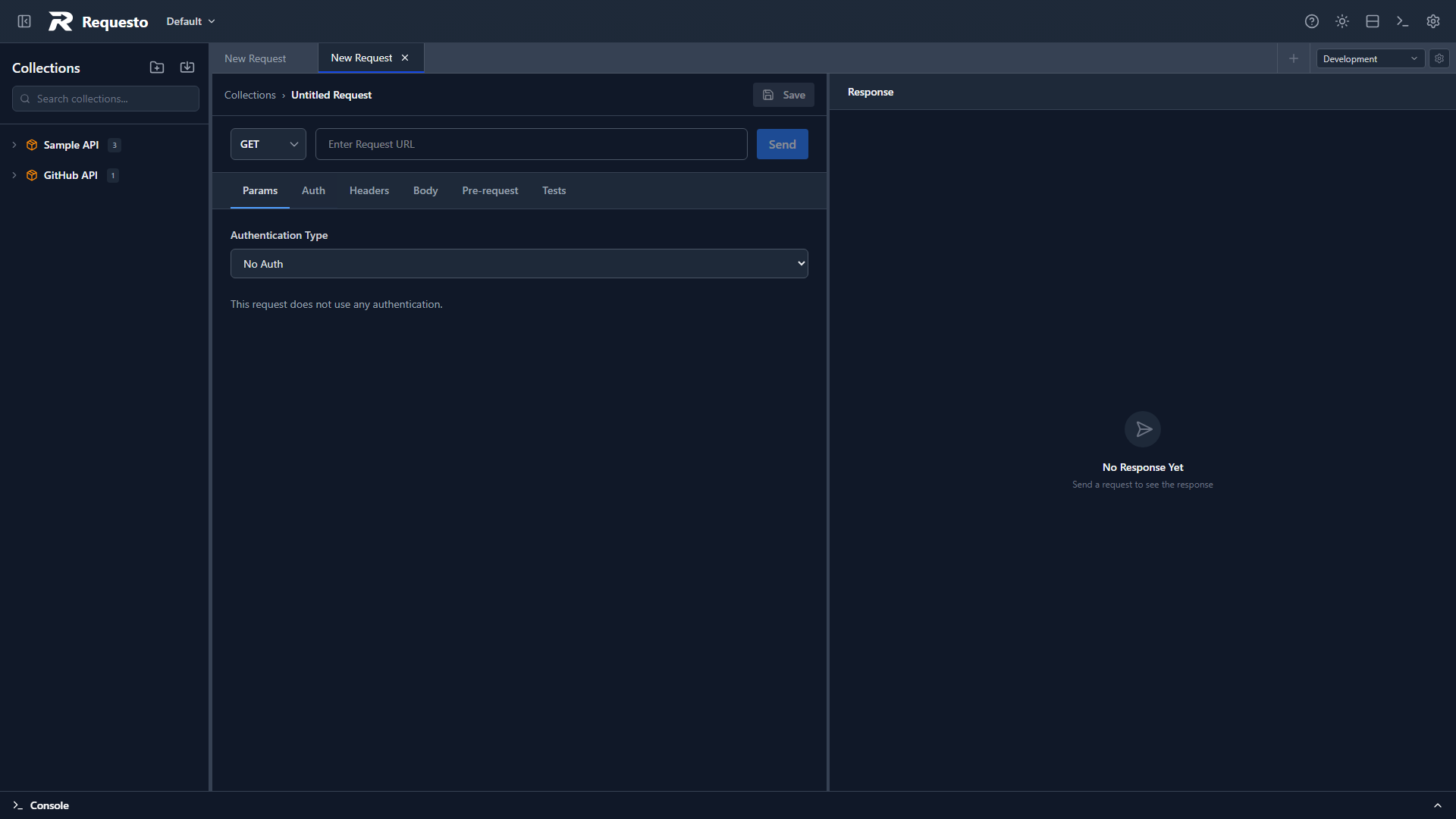
In a request's Auth tab:
- Select OAuth 2.0 as the auth type
- Pick your saved configuration
- Send the request - the token is added as
Authorization: Bearer <token>
Token Storage
- Access tokens and refresh tokens: stored server-side by the backend in
.requesto/local/oauth-tokens.jsoninside the active workspace. This folder is local-only and excluded from git. The browser never receives the tokens themselves - only a non-secret status (expiry and preview) so the UI can show when a token is active or expiring. - Client secrets: stored server-side only in
.requesto/local/oauth-secrets.json- never exposed to the frontend
Automatic Refresh
When a request needs a token and the stored one is expired (or expiring within the next 30 seconds), the backend silently refreshes it before sending - or silently re-fetches a new token for client credentials and password flows.
The Refresh Threshold setting on a config controls when the UI shows a "Token Expiring Soon" warning.
You can also manually refresh by clicking Refresh Token in the auth editor, or Revoke to invalidate the token with the provider.
PKCE
When using the Authorization Code with PKCE grant type, PKCE is handled automatically - a code verifier and SHA-256 code challenge are generated with no extra configuration.
A state parameter is also generated automatically for CSRF protection on all authorization code flows.
Provider Examples
GitHub
Grant Type: Authorization Code
Authorization URL: https://github.com/login/oauth/authorize
Token URL: https://github.com/login/oauth/access_token
Scope: user repoGoogle
Grant Type: Authorization Code with PKCE
Authorization URL: https://accounts.google.com/o/oauth2/v2/auth
Token URL: https://oauth2.googleapis.com/token
Scope: openid https://www.googleapis.com/auth/userinfo.emailSpotify
Spotify has no built-in template, but works via manual configuration:
Grant Type: Authorization Code with PKCE
Authorization URL: https://accounts.spotify.com/authorize
Token URL: https://accounts.spotify.com/api/token
Scope: user-read-private user-read-emailTroubleshooting
"Invalid Redirect URI" - The redirect URI registered with your provider must exactly match what Requesto sends. Check the auto-detected URI shown in the config form and register that exact value with your provider. Note that GitHub requires an https callback unless you're on localhost, and Microsoft Entra ID has its own redirect handling built into the config form.
Token not refreshing - Refreshing happens automatically when a request runs. Make sure your provider actually issued a refresh token (not all do), and that your provider allows refresh grants for your client.
Authorization window not opening - Check that your browser isn't blocking the popup. If popups are blocked, Requesto falls back to a full-page redirect. Verify the authorization URL is correct.
Self-signed certificate on the token endpoint - If your OAuth provider's token URL uses a self-signed or otherwise untrusted TLS certificate, enable Ignore SSL certificate errors in Settings. This applies to both OAuth token exchange and outgoing API requests.